New article
Recently updated
Troubleshooting ERM (Enterprise Risk Management) Module access issue in the client application

Who is this article for?
Users who are unable to access the Enterprise Risk Management Module in the client application
Elevated permissions are not required.
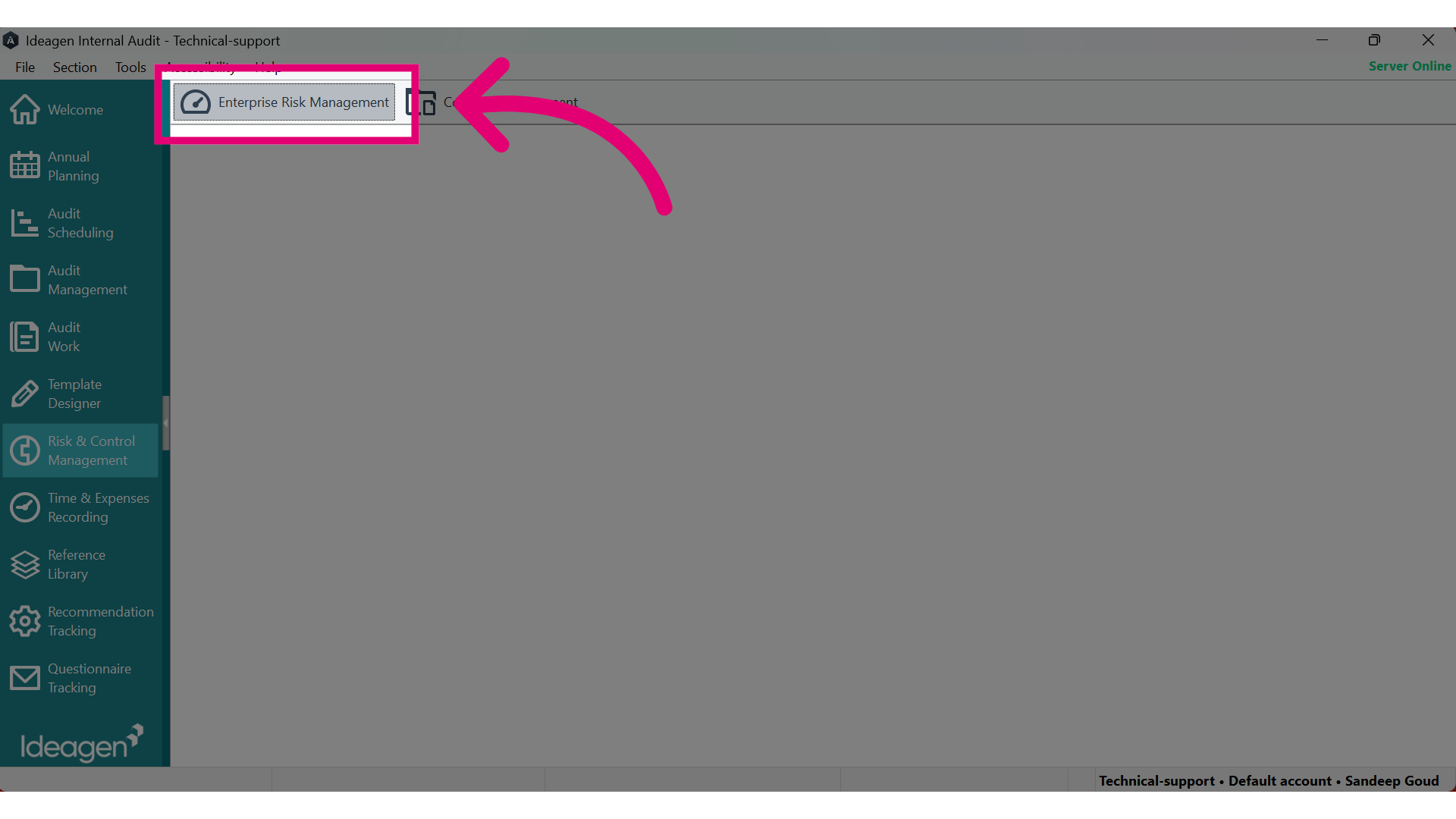
This article guides you in resolving the error "An error occurred while performing this action. Please review the error log for further information" when accessing the ERM (Enterprise Risk Management) Module in the client application.
1. Issue
Users frequently encounter the following error message when attempting to access the Enterprise Risk Management module through the desktop client application. This issue can arise due to software configuration errors, or permission restrictions within the system.
2. Resolution
This guide will help you resolve issues you may encounter when attempting to access the Enterprise Risk Management Module, particularly if you see an error message.
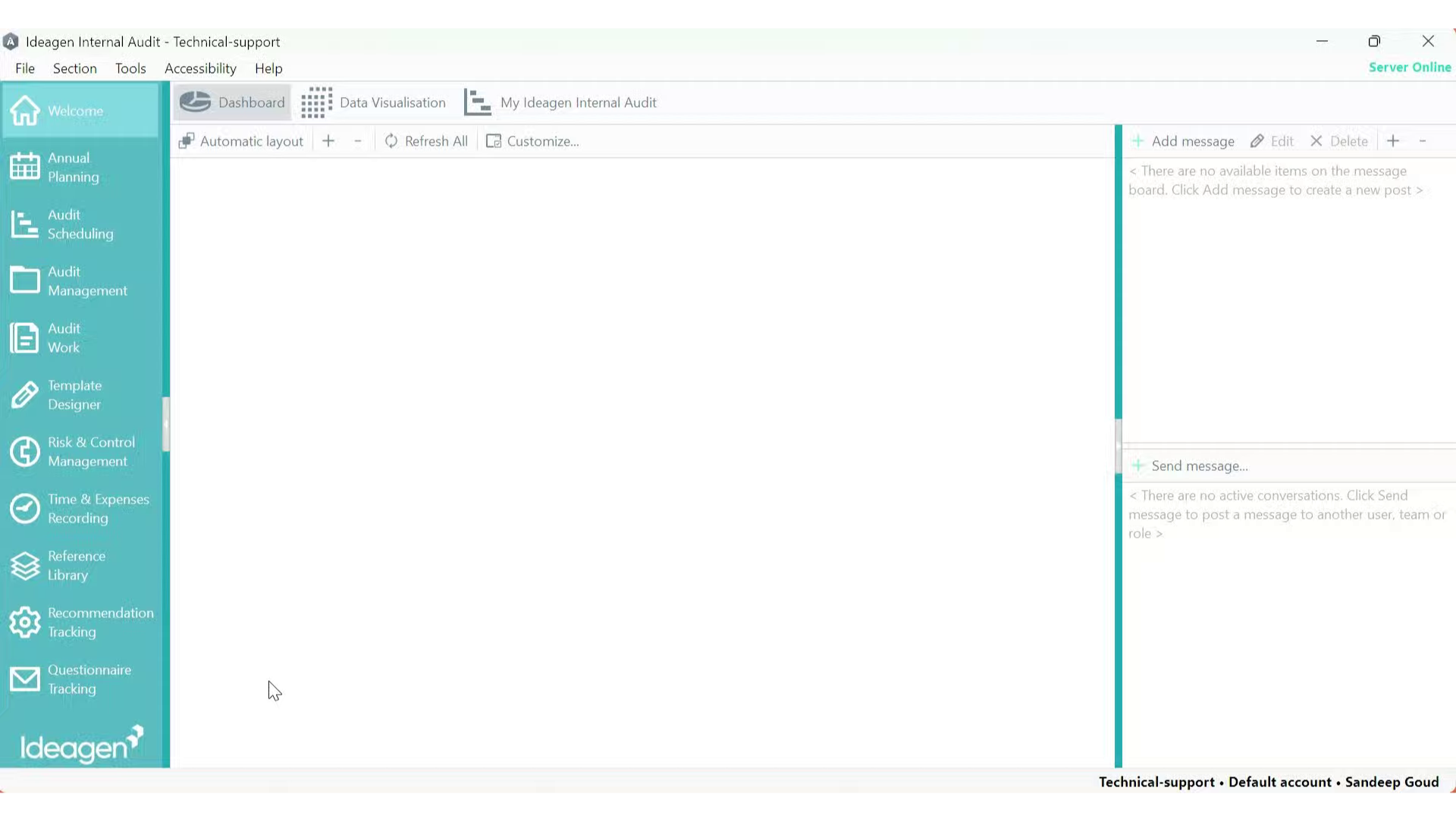
1. Login to the application
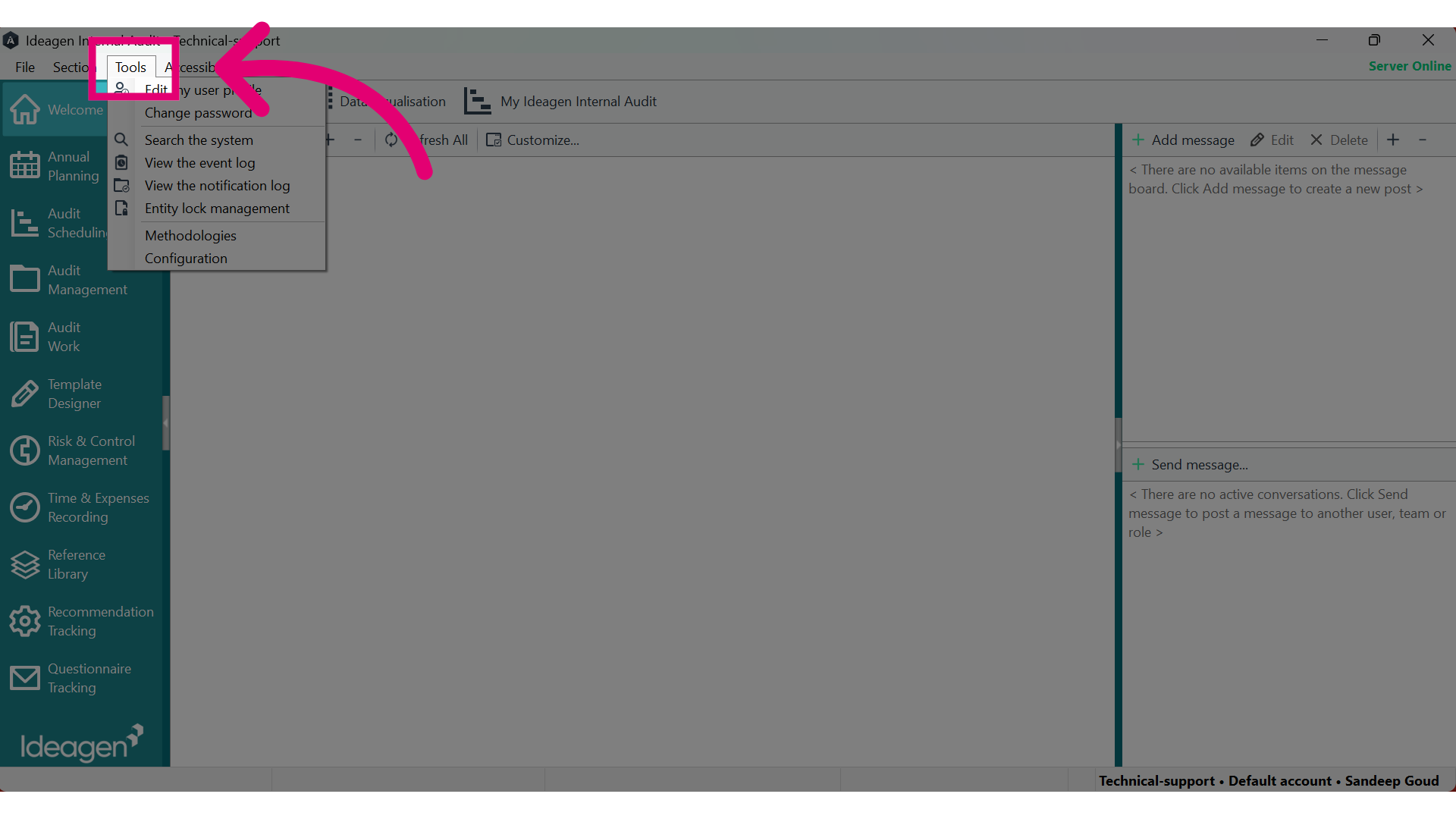
2. Click "Tools"
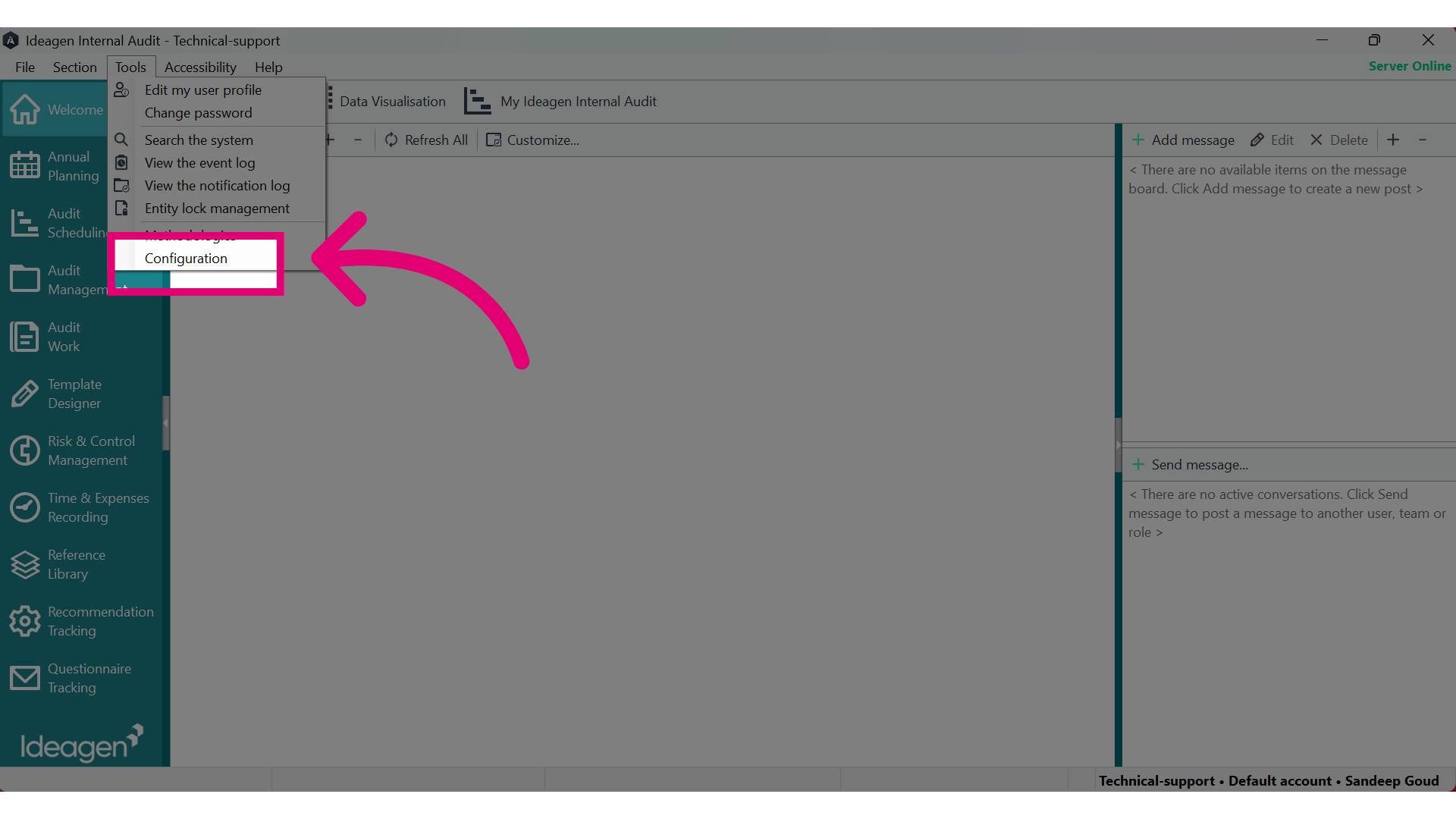
3. Click on "Configurations"
4. Click on "Select Configuration Section"
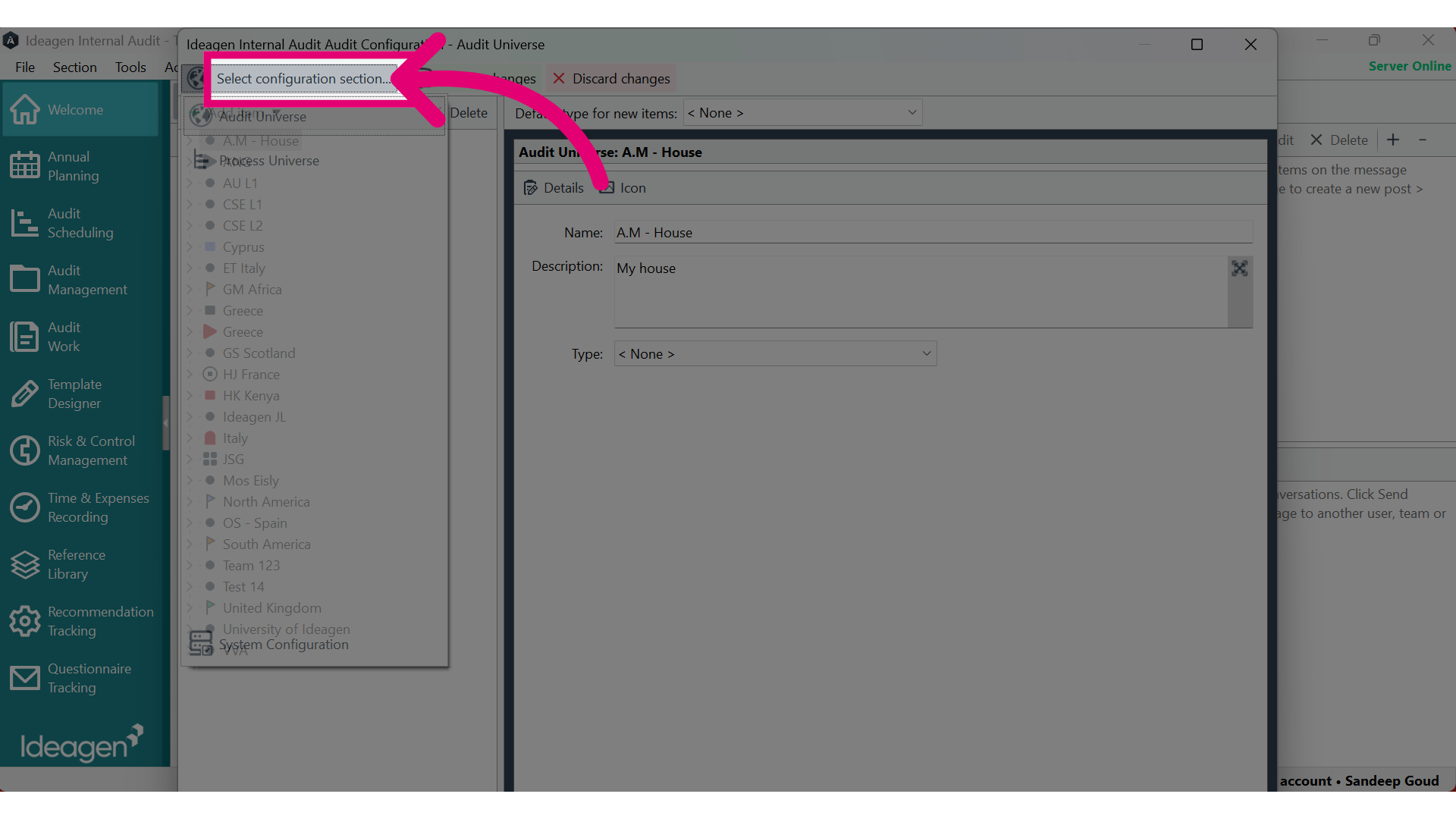
5. Choose the "Users , Roles & Permissions" option
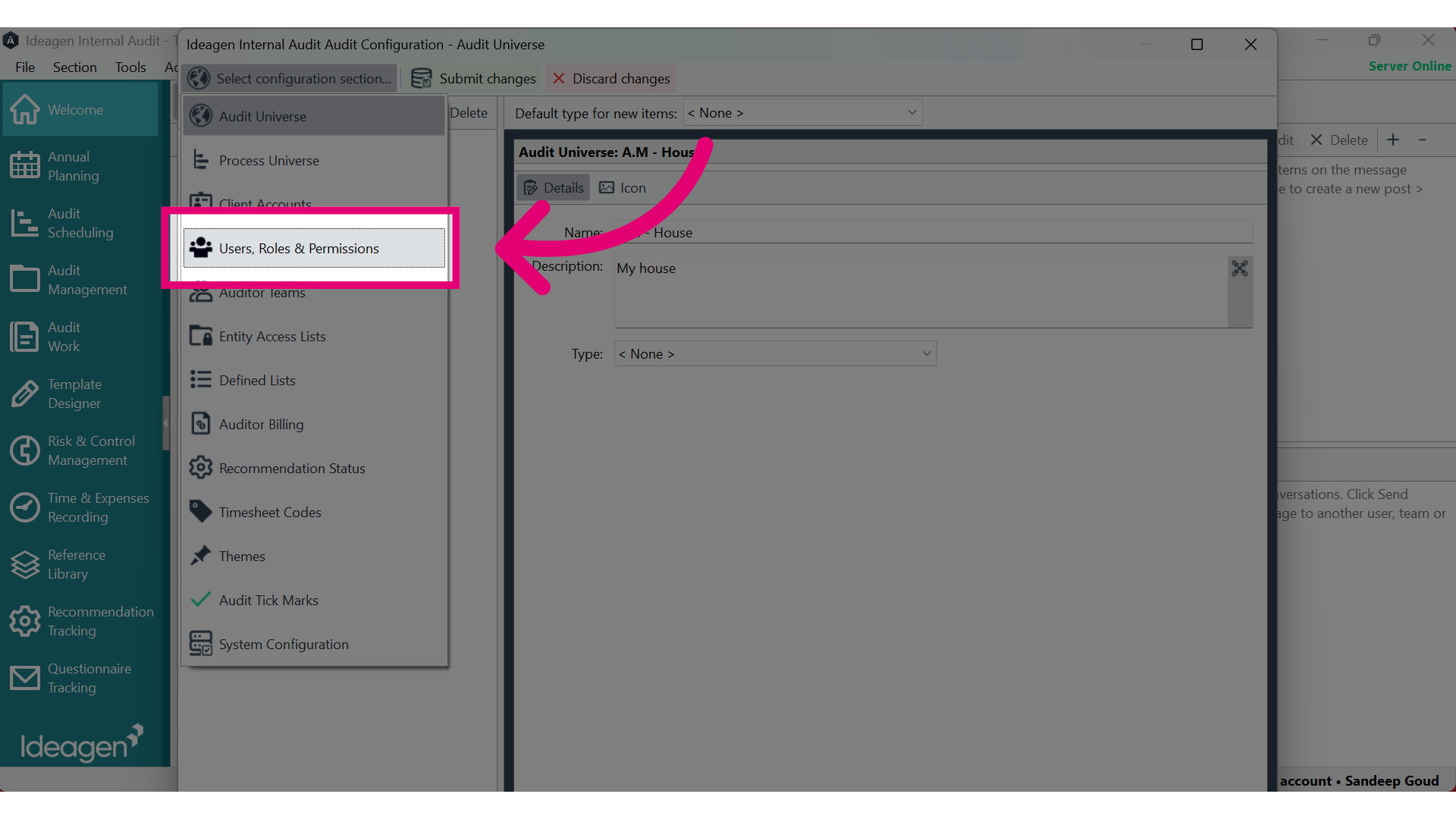
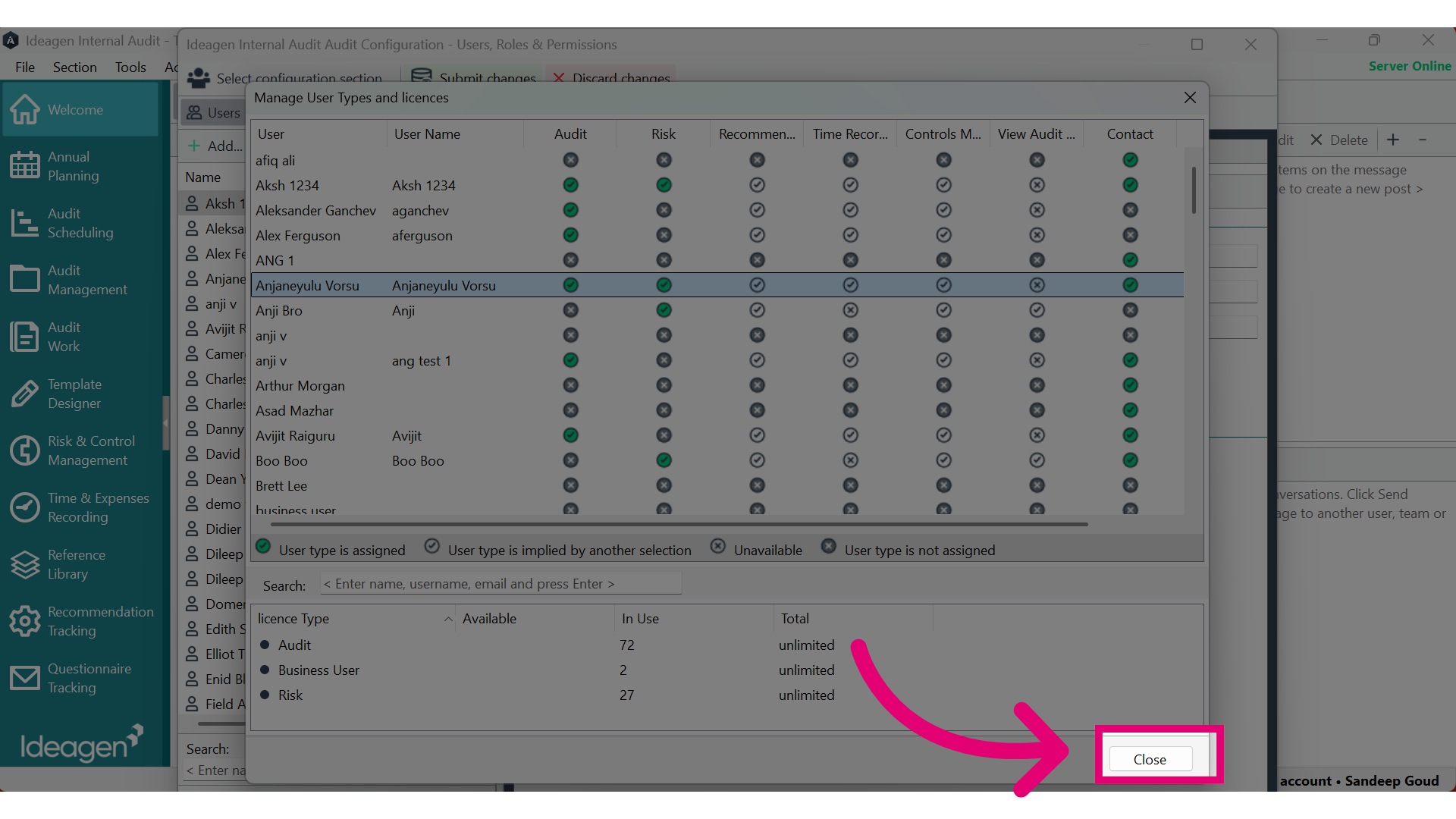
6. Select "Manage user types and licences"
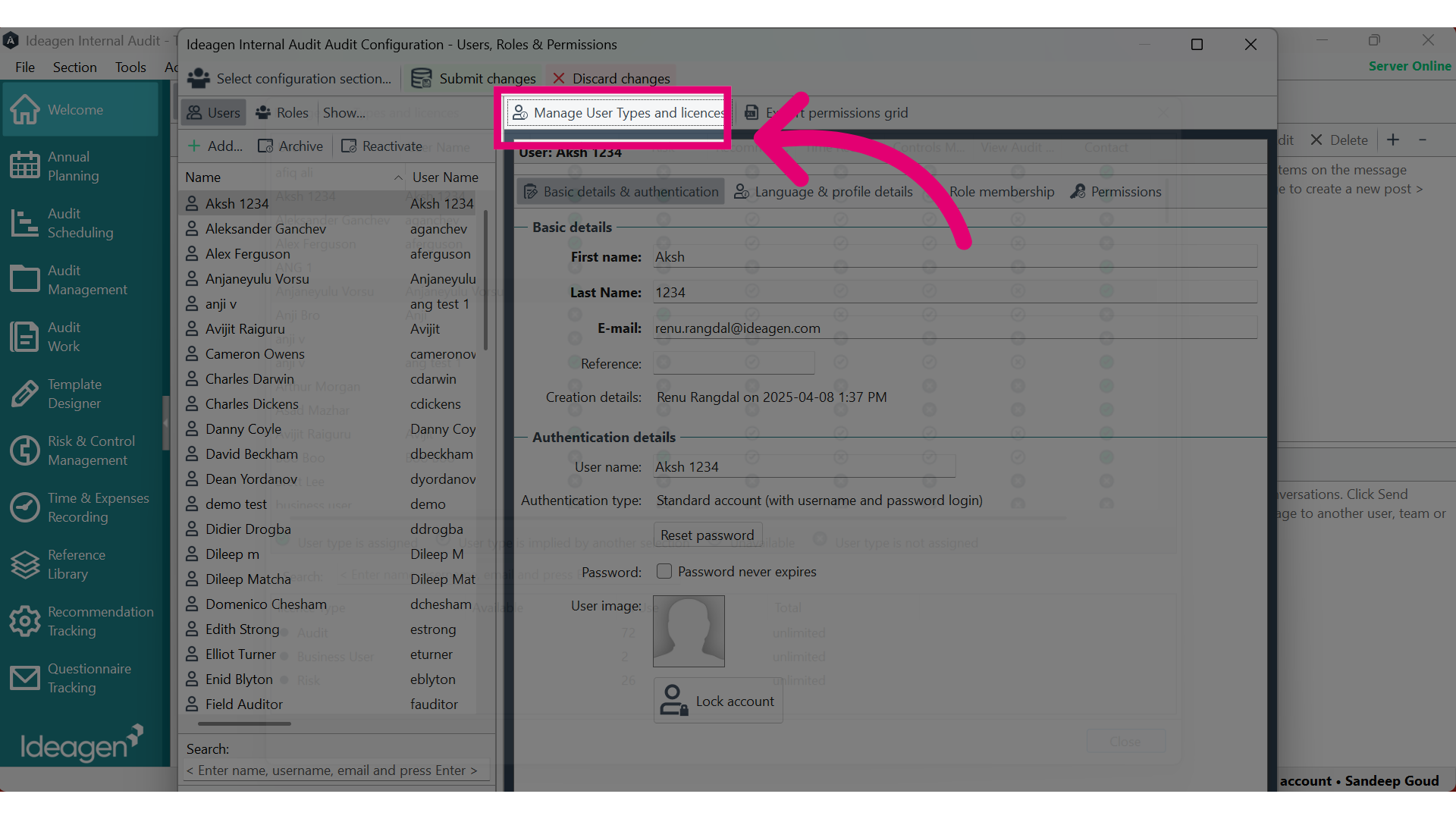
7. Remove the risk licence to the affected user
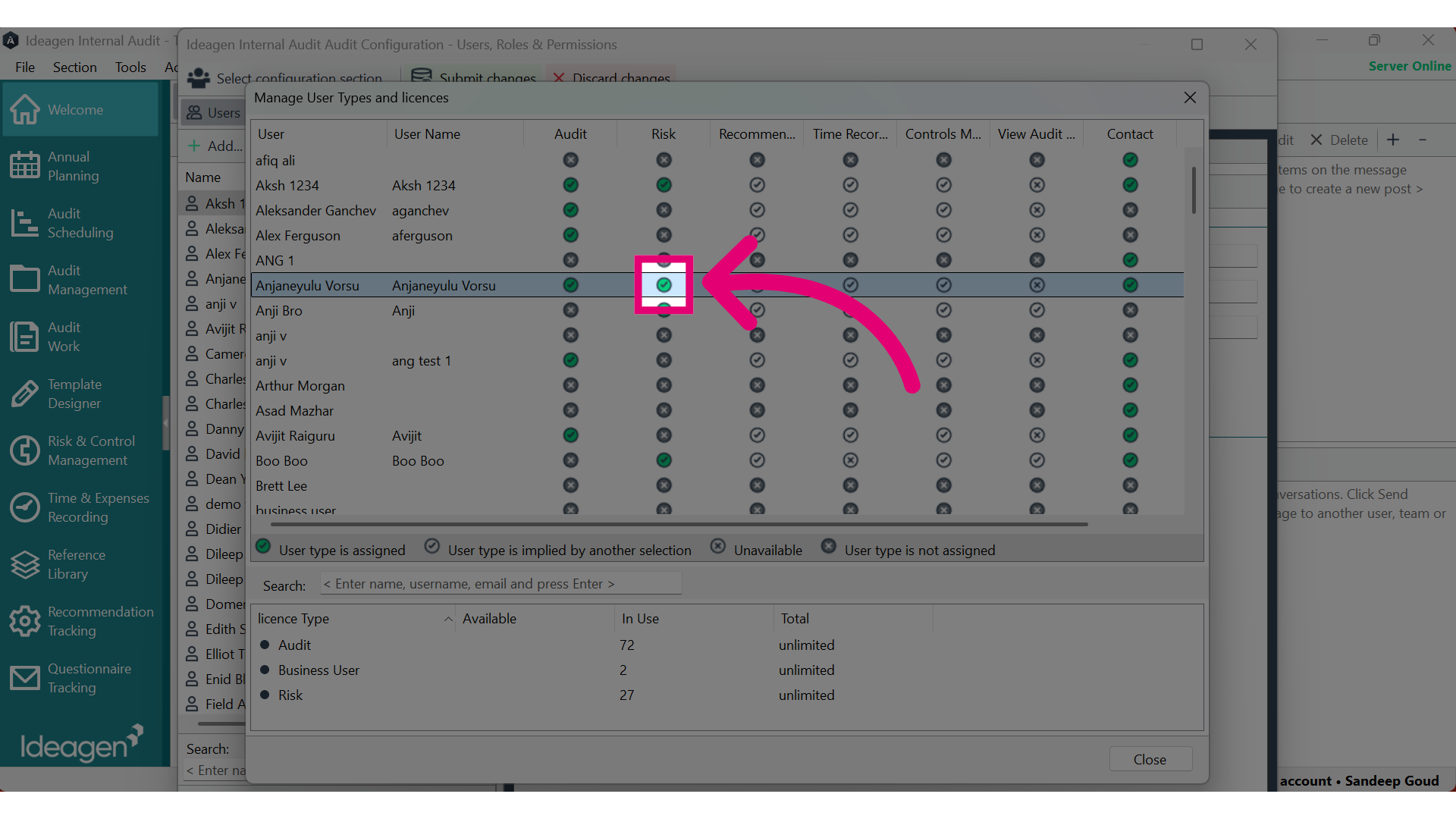
8. Click on "Close
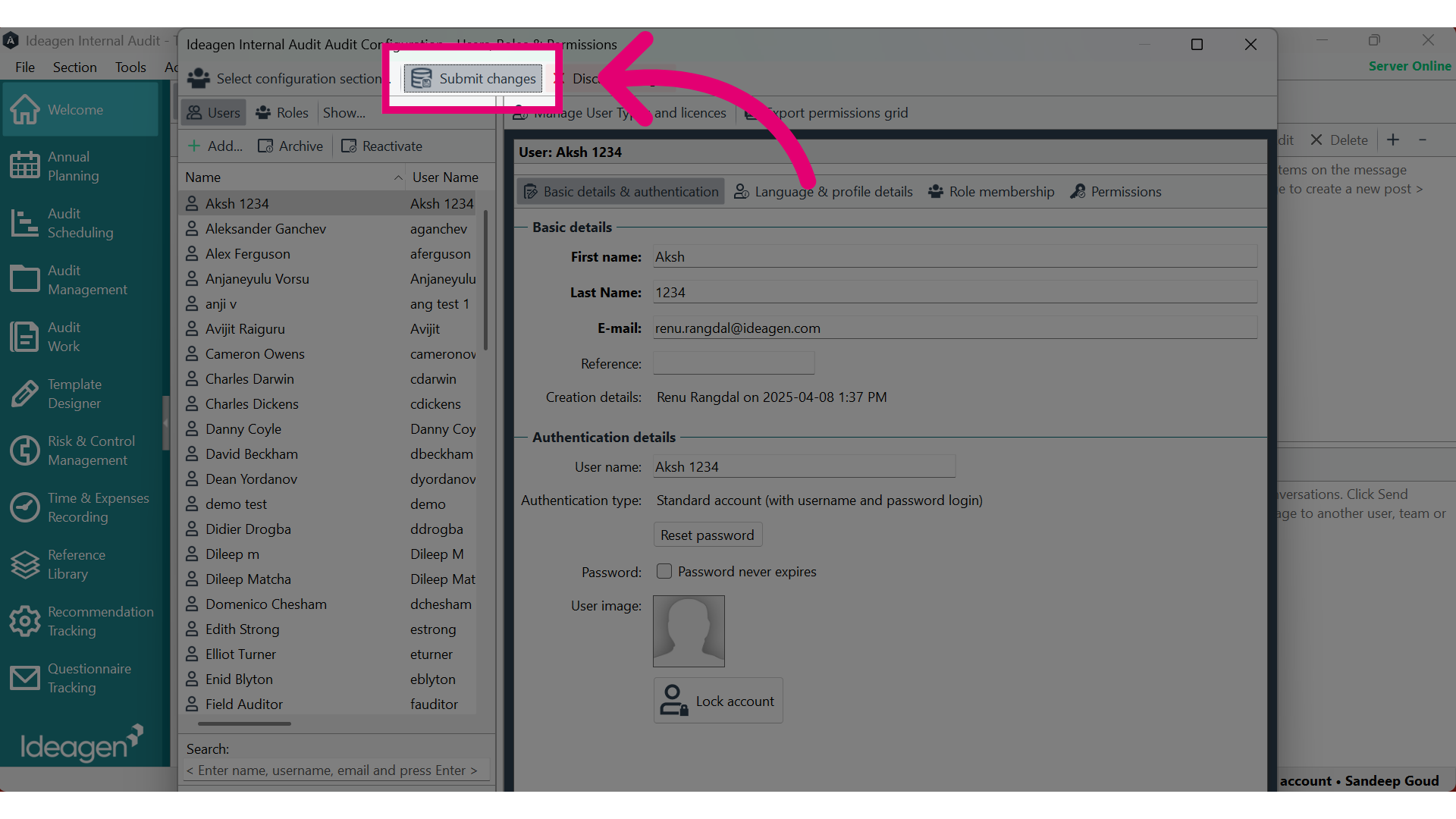
9. Select the option to "Submit changes"
Select the option to "Submit changes"
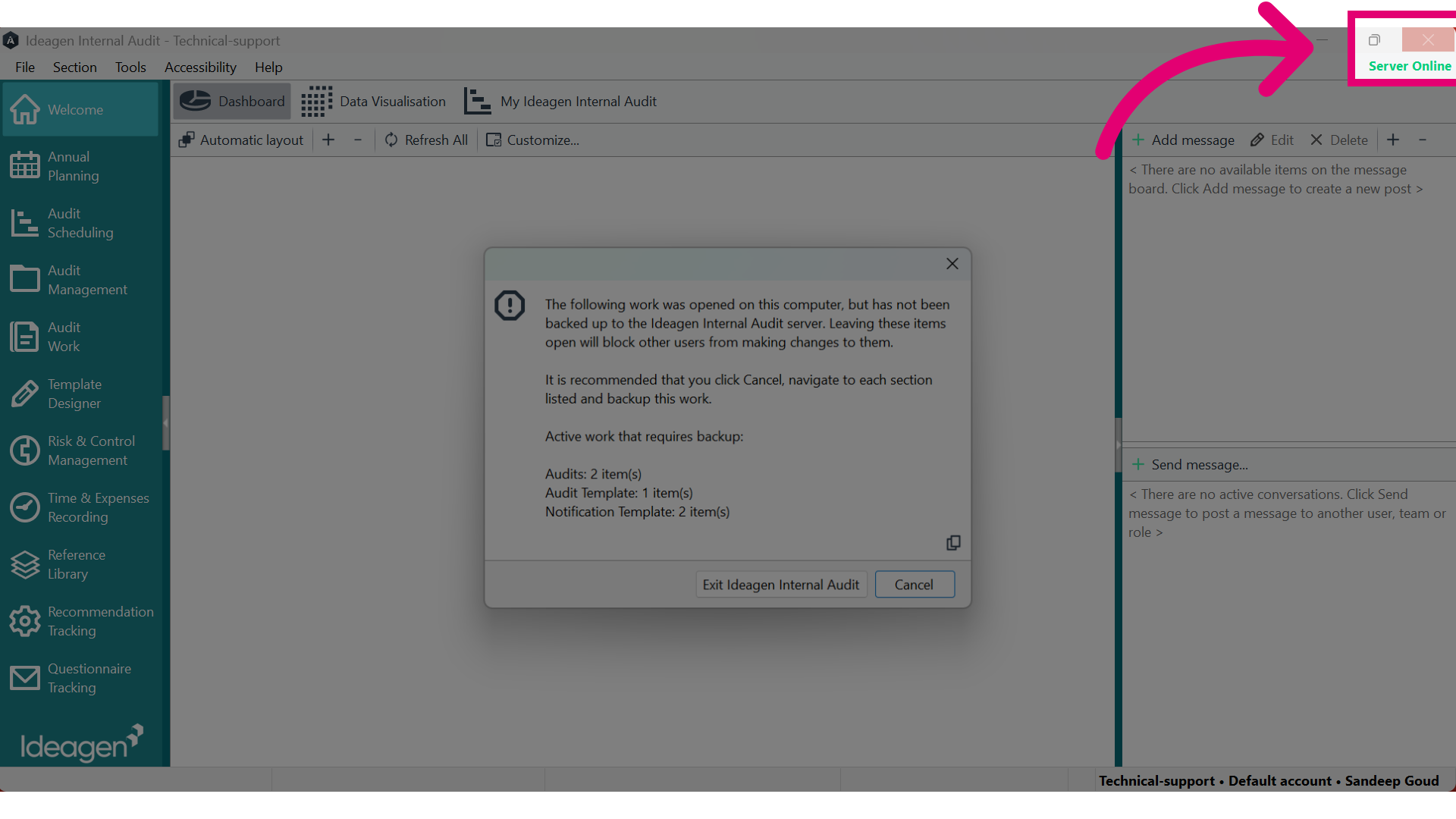
10. Then, fully close the application.
11. Reopen the application and log in again. Subsequently, follow the same procedure to assign the risk license to the user.
12. The user should be able to access the 'Enterprise Risk Management' Module without encountering any errors.